Use marinaMoji with confidence: modes, palettes, settings, and plugins for scholarly writing.
Toolbar and menu
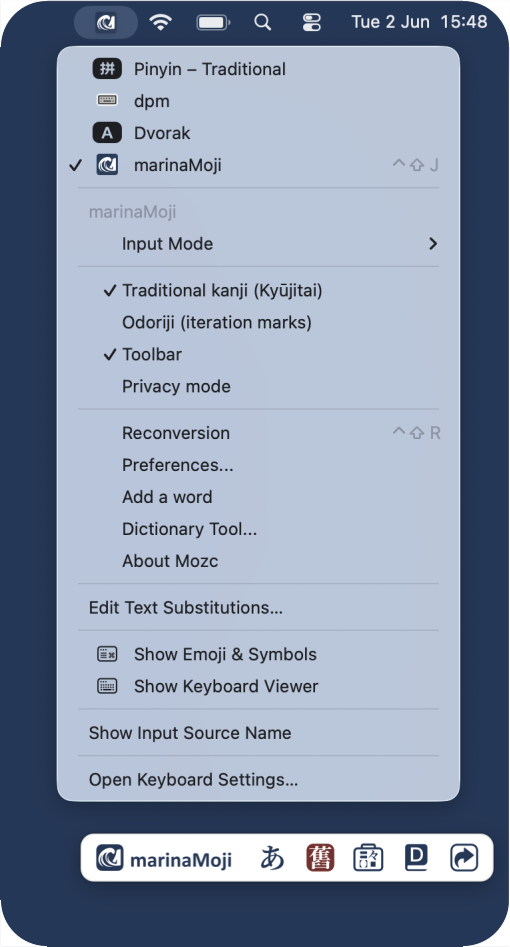
Activating marinaMoji reveals a toolbar at the bottom of the screen. The toolbar displays the input mode (hiragana, katakana or rōmaji) (////), a toggle for shin/kyū character forms (/), and buttons for the Symbols palette (), Add word (), and Keyboard shortcuts guide (). Drag the toolbar to reposition it; use the IME menu item Toolbar to show or hide it. Each of these functions is described below.
The IME menu offers the same core actions: input mode, traditional kanji (kyūjitai), odoriji palette, Privacy mode (pauses learning and history), Properties (full settings), and dictionary utilities. Note that the macOS menu does not currently allow input mode toggling.
Basic input modes
marinaMoji features the standard set of input modes for a Japanese IME: hiragana (), katakana (), half-width katakana (), half-width romaji (), full-width romaji (), and ASCII direct input (also ).
The principal difference is that katakana mode features character conversion, acting like hiragana mode but returning kanji and katakana exclusively. This is intended to facilitate the input of Japanese historical texts using katakana instead of hiragana.
Switch mode from the IME menu, the toolbar mode indicator, or these shortcuts:
Action
Shortcut
Toggle hiragana ↔ Latin (ASCII)
⌃⇧5 (ctrl+shift+5)
Toggle hiragana ↔ Manyōshū
⌃⇧4 (ctrl+shift+4), or right shift in Japanese modes
Toggle shin / kyū kanji
⌃⇧3 (ctrl+shift+3) / ⌃⇧F (ctrl+shift+f)
Hiragana and katakana modes convert romaji to kana as you type. Press ⏎ / enter to directly commit kana as is; press Space to convert.
Space first opens the historical commits palette.
⇥ (tab): cycle forwards
⇧⇥ (shift+tab): cycle backwards
⏎ (enter): commit
A second space opens the dictionary candidate palette:
Space / ▼ cycle forwards
⇧Space (shift+space) / ▲: cycle backwards
PgUp / PgDn change pages when many candidates are available
◀ / ▶ switch between pre-edit segments
⇧◀ / ⇧▶ move segment boundaries
⏎ (enter): commit
After hitting space and before committing a candidate, you can press esc to return to hiragana/katakana segments. Pressing esc a second time will erase the input.
You can type Latin letters in kana modes with ⇪ / caps lock (uppercase).
Macron vowels
Direct input mode reproduces the last Western keyboard used (QWERTY, AZERTY, Dvorak, Bépo, etc.) with one exception: Press ⌃⌥ (ctrl+alt) plus a vowel to produce ā, ē, ī, ō, ū, and ⌃⌥⇧ (shift+ctrl+alt) plus a vowel for Ā, Ē, Ī, Ō, and Ū. In direct input, right shift also functions as a macron dead key: press it once (a ¯ placeholder appears), then the vowel (ā, ē, ī, ō, ū) or shift+ vowel (Ā, Ē, Ī, Ō, Ū). Esc or Backspace cancels the placeholder. In hiragana, katakana, or Manyōshū, the same Right Shift tap toggles hiragana ↔ Manyōshū instead.
Historical kana
Pre-modern Japanese used kana distinctions that modern standard Japanese has largely merged—for example ゐ and ゑ beside い and え, small ゎ, and spellings such as ゔ that differ from everyday kana. marinaMoji extends Mozc’s romaji table so you can type these forms directly in hiragana or katakana mode.
The most common historical kana use dedicated romaji sequences (longer than a single key so they do not clash with normal typing):
Romaji
Kana
Note
wyi
ゐ
historical wi
wye
ゑ
historical we
wi / we
うぃ / うぇ
modern w-row, not ゐ/ゑ
vu
ゔ
also va, vi, ve, vo, vya, …
xwa or lwa
ゎ
small wa
ye
いぇ
and kye, gye, sye, … for other ye kana
Additional small-kana and ye-style combinations (kwa, twa, hwa, and similar) are in the same table. Future: for variant kana (hentaigana 変体仮名) and voiced historical forms (ゐ゙, ゑ゙, ヸ, ヹ), open the toolbar Symbols palette () and search readings such as ゐ, うぃ, or hentaigana.
Conversion and dictionaries. Stock Mozc vocabulary reflects modern Japanese; archaic readings (e.g. つるゑ, 知恵 with ゑ) may not appear as top candidates yet. Press Enter to commit kana without kanji conversion, choose the intended form from the candidate list, or add a user dictionary entry. Broader historical-kana coverage in automatic conversion, plus a global orthography toggle, are on the roadmap. Kyūjitai mode handles traditional kanji forms; it complements but does not replace typing historical kana yourself.
Kyūjitai 舊字體
Kyūjitai mode () converts modern shinjitai dictionary forms toward traditional glyphs using OpenCC and our own custom dictionaries. Turn it on from the toolbar, the IME menu (Traditional kanji), or ⌃⇧3 (ctrl+shift+3), ⌃⇧F (ctrl+shift+F).
Conversion quality depends on our OpenCC tables and dictionary coverage. When in doubt, pick the intended glyph from the candidate list or add a user-dictionary entry.
Odoriji 踊り字 repetition marks
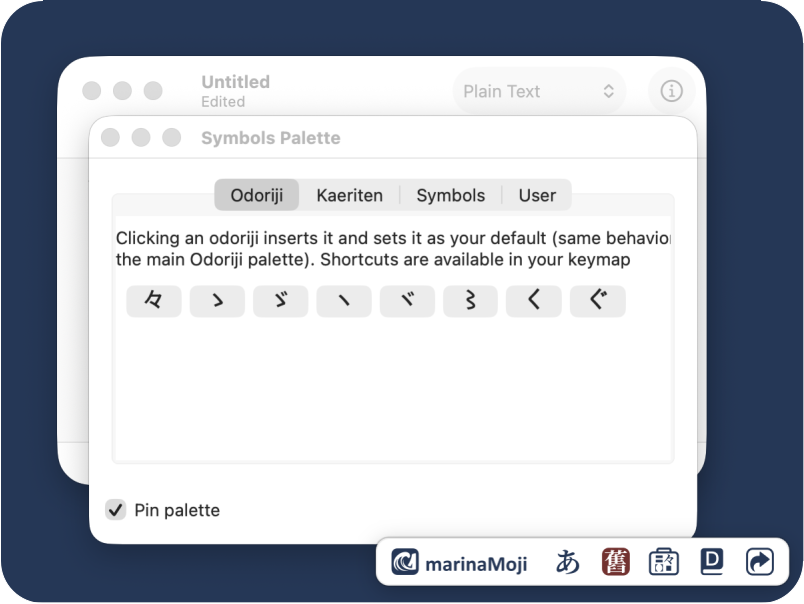
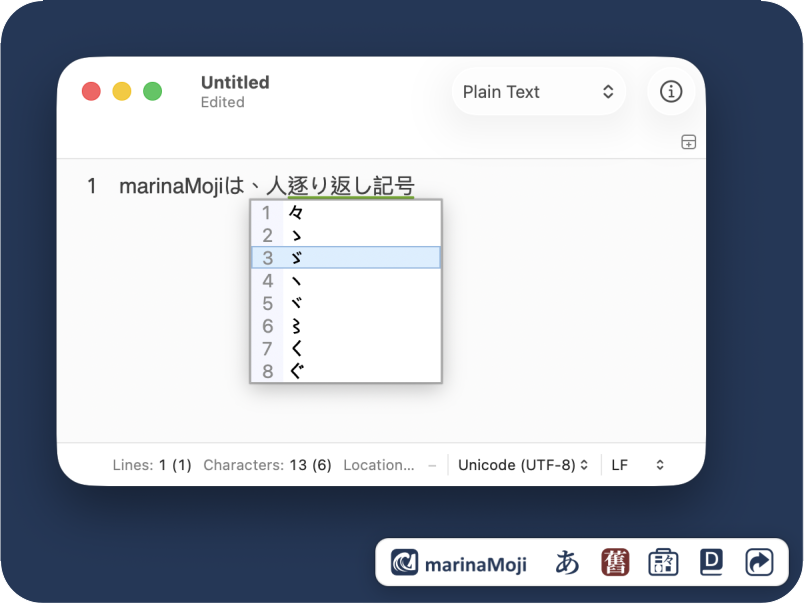
Modern IMEs store the standard odoriji (々) as part of fixed vocabulary in their dictionaries and allow you to access several historical forms by typing odoriji. By contrast, marinaMoji offers a full gamut, allows two-key entry, and stores a session default.
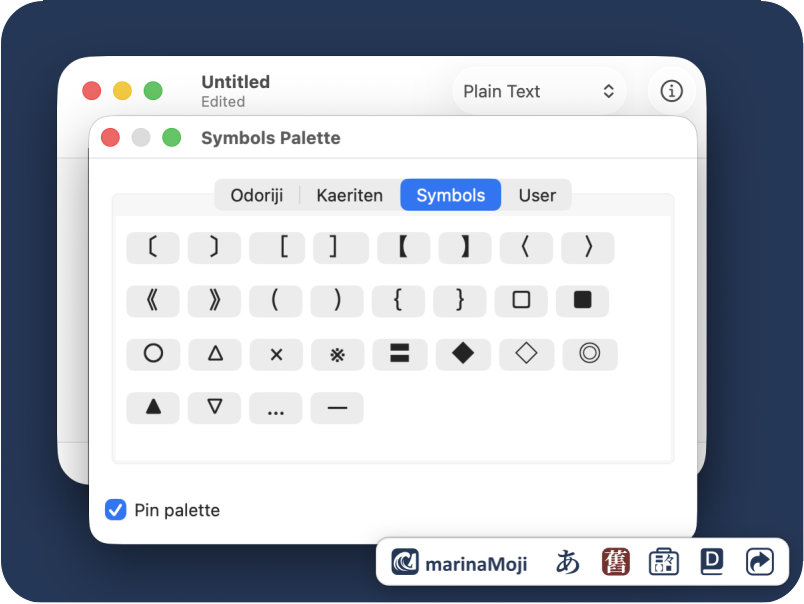
First, a 'point and click' odoriji tab is accessible in the toolbar's Symbols palette ().
Second, a separate odoriji candidate menu is accessible in the IME menu and via the following shortcuts:
⌃⇧1 (ctrl+shift+1) — insert the session default (often 々).
⌃⇧2 (ctrl+shift+2) — open the odoriji palette and choose among marks such as 々, 〻, 〱, ゝ, ヽ, ヾ, ゞ, ヶ, and related forms supported in your build.
Importantly, the IME remembers the mark that you chose and uses it as the default until you select another.
Example : if you selected 〻 as the default odoriji, "tokidoki" will be converted as 時〻 instead of the modern 時々.
Kaeriten 返り点 reading marks
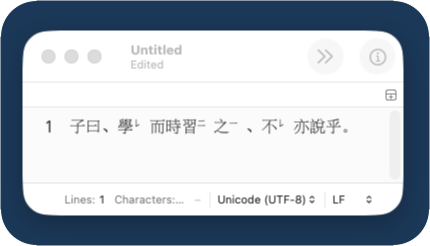
Formatting kaeriten reading marks is notoriously difficult and time-consuming for the average user, and is usually (re)done professionally by an editor for publications. Their approach differs depending on the software and the coding language used. marinaMoji breaks this problem into two steps.
First, kaeriten can be inserted via the Symbols palette () or the semicolon shortcuts (e.g., ;r for レ) listed in Keyboard shortcuts (). These are rendered into superscript Unicode characters, which are distinct code points, although they may or may not be visually distinct from their full forms in certain fonts (see Fonts).
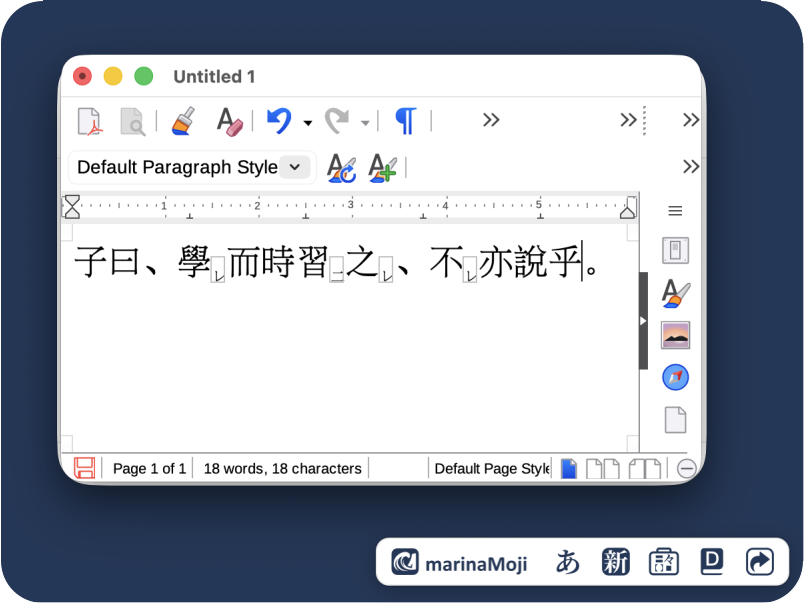
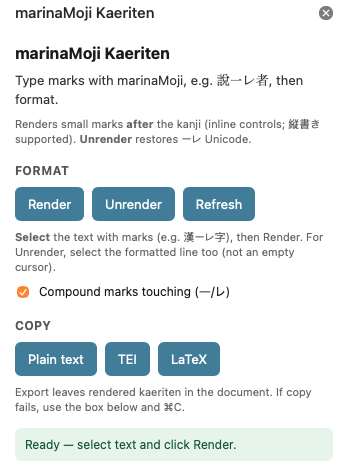
Next, in order to guarantee correct position and stacking, marinaMoji's word processor plugins allow the user to render the Unicode kaeriten into inline images for professional-quality printing and PDFs.
Plugins are available for Microsoft Word and the open-source, multi-platform word processors LibreOffice and OnlyOffice. OnlyOffice offers maximum compatibility with Word, but no vertical text mode. LibreOffice's vertical text mode is hidden in its settings, so the LibreOffice plugin includes a button to toggle text orientation ().
These plugins work by rendering images based on the font and the orientation of your text. Those images are encoded such that they can be unrendered back into Unicode and refreshed to match any change in font or orientation.
Serious data-entry and page-setting for kanbun requires XML, LaTeX, and custom coding. marinaMoji's use of distinct Unicode code points allows for easy integration with such solutions via regular expressions, and the word processor plugins allow for copying rendered text as the original Unicode for this purpose.
Typing ancient Japanese
Japanese IMEs are not made for typing ancient words or kanbun character by character, but there are ways to do this efficiently built into every IME. Example: you want to type Daigengū 大元宮, a historical shrine name that no IME knows out of the box.
Type daigenguu
Enter: Convert to 第|現ぐう (wrong segmentation)
Space: Cycle first segment to 大
▶: Move to next segment (現ぐう)
⇧◀ (twice): Shrink segment so only 現 is selected
Space: Cycle to 元
▶: Move to ぐう
Space: Cycle to 宮
Enter: Commit 大元宮
When 大元宮 is on screen in the candidate list, press ⌃⇧0 (ctrl+shift+0) or click the toolbar Add word button () to open a pre-filled add-word dialog—before you commit. After you commit, the same shortcut saves from your last commit (see User dictionary and learning history).
Symbols
In addition to odoriji and kaeriten, the toolbar's Symbols palette () contains a variety of rare editorial marks and user-defined symbols. Edit the User tab list under Properties > Dictionary > Edit user symbols… (see Settings).
Keyboard shortcuts
High-value shortcuts for daily DH work (full list: toolbar Shortcuts button ):
Action
macOS
Linux
Toggle hiragana ↔ Latin
⌃⇧5
ctrl+shift+5
Toggle hiragana ↔ Manyōshū
⌃⇧4 or right shift (Japanese modes)
ctrl+shift+4 or right shift (Japanese modes)
Toggle shin / kyū kanji
⌃⇧3 or ⌃⇧F
ctrl+shift+3 or ctrl+shift+f
Insert session odoriji
⌃⇧1
ctrl+shift+1
Open odoriji palette
⌃⇧2
ctrl+shift+2
Add word (pre-filled from conversion or last commit)
⌃0 or ⌃⇧0
ctrl+shift+0
Open full dictionary tool (toolbar)
right-click Add word
right-click Add word
Macron vowels (direct input)
Right Shift tap, then vowel; or ⌃⌥ + vowel
same
Cycle inline history suggestions
⇥ / ⇧⇥
tab / shift+tab
Inside the candidate window: Space / ▲ / ▼ move; Enter confirms; ◀ / ▶ change segment; ⇧◀ / ⇧▶ adjust segment boundaries.
User dictionary and learning history
On your local machine, marinaMoji keeps two types of personal word data. They behave differently, and you can sync them separately (see Synchronisation across devices).
Learning history (commit / input history)
Learning history is built automatically from what you commit while typing. Each time you confirm a conversion, marinaMoji records that choice and may suggest it sooner next time. This is sometimes called personalisation or commit history. Suggestions based on commit history appear prior to the candidate window and are cycled through using ⇥ (tab) and ⇧⇥ (shift+tab).
Properties > Dictionary > Personalization controls how strongly past conversions influence new ones.
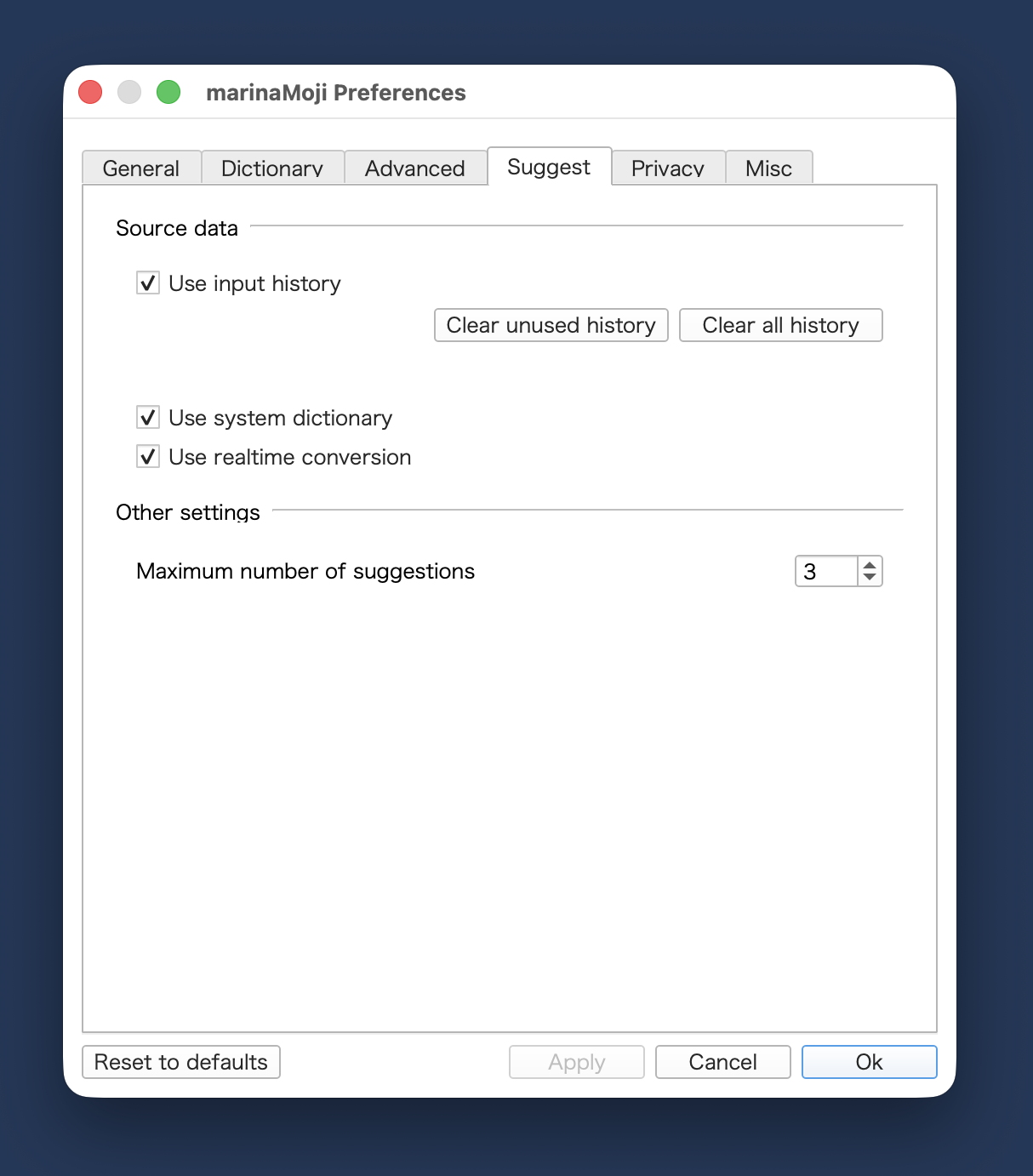
Properties > Suggest > Use input history turns history-based inline suggestions on or off.
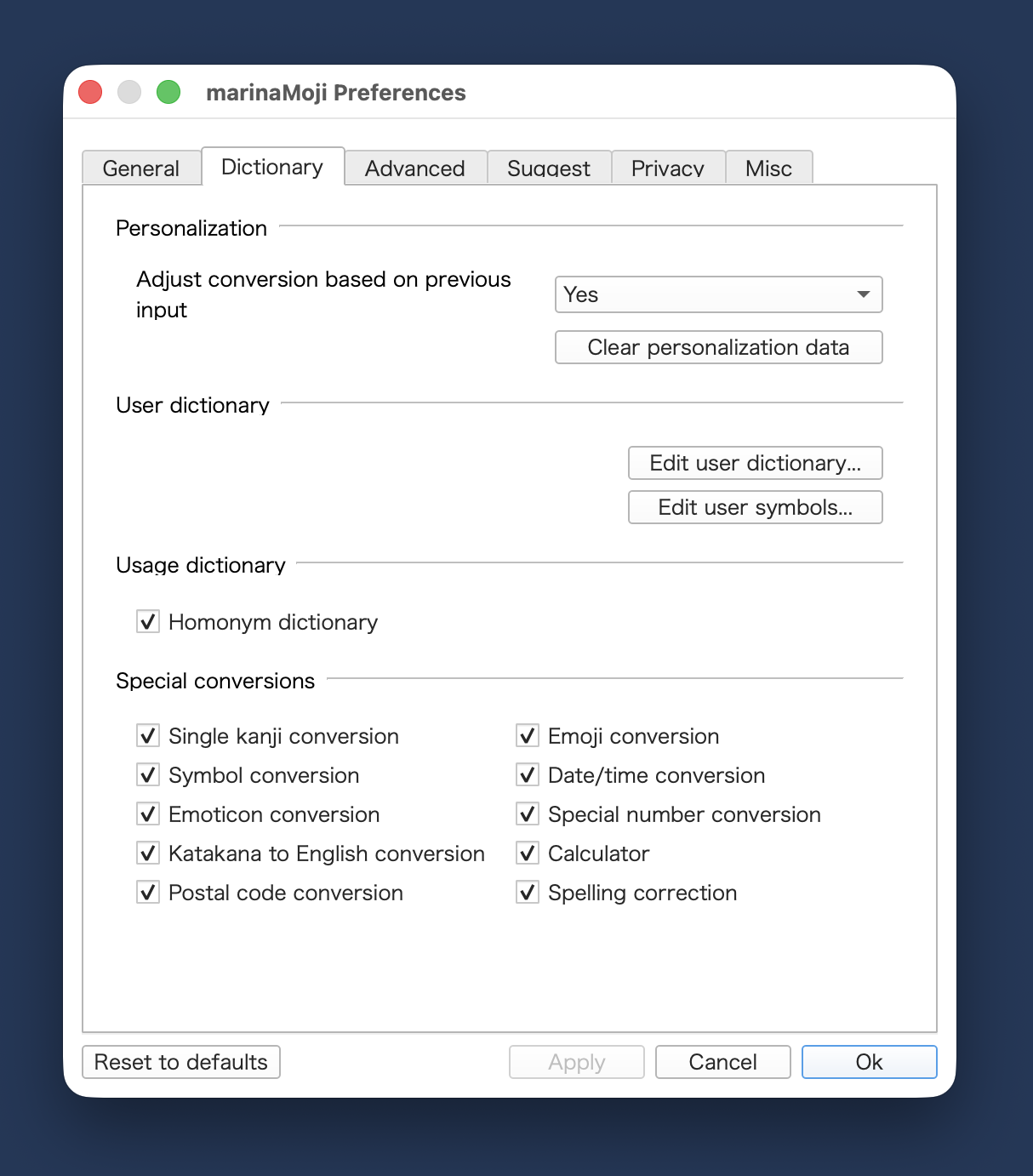
Clear personalization data (Dictionary tab) or Clear input history (Suggest tab) wipes learned data without removing your explicit user-dictionary entries.
User commit history is ephemeral: rarely used readings fade from memory over time.
User dictionary
The user dictionary is a list of entries that you add yourself — readings, spellings, and part-of-speech tags for words the IME should know. They appear in the candidate window until you remove them.
To add an entry manually, open Properties > Dictionary > Edit user dictionary…, or right-click the toolbar Add word button () for the full dictionary tool.
Add word () ⌃⇧0 (ctrl+shift+0)
This option opens a pre-filled add word dialog from your current conversion. Right-click the button (or use its menu on macOS) to open the full Dictionary tool for browsing and editing your word lists.
Fast path — during conversion (e.g. Daigengū in Typing ancient Japanese, before you commit):
Type and convert until the candidate you want is highlighted (in the history palette with ⇥ / tab, or the dictionary palette with Space).
⌃⇧0 (ctrl+shift+0), or click the toolbar Add word button (): opens a form pre-filled with that expression and your typed reading (with reverse-conversion alternatives in the reading menu).
⏎ (enter): save.
The dialog uses the highlighted candidate, not only the top suggestion—so you can ⇥ (tab) through learning history first, then add the one you want.
Fast path — after commit:
⏎ (enter): commit the reading you want to keep.
⌃⇧0 (ctrl+shift+0), or click Add word: opens a form pre-filled from your last commit.
⏎ (enter): save.
Privacy mode
While marinaMoji does not send user data to the network, it does store it locally to improve suggestions — which you may not want even on disk. Privacy mode (IME menu or Properties > Privacy > Secret mode) pauses learning and history-based suggestions, and skips exporting history during synchronisation.
Settings
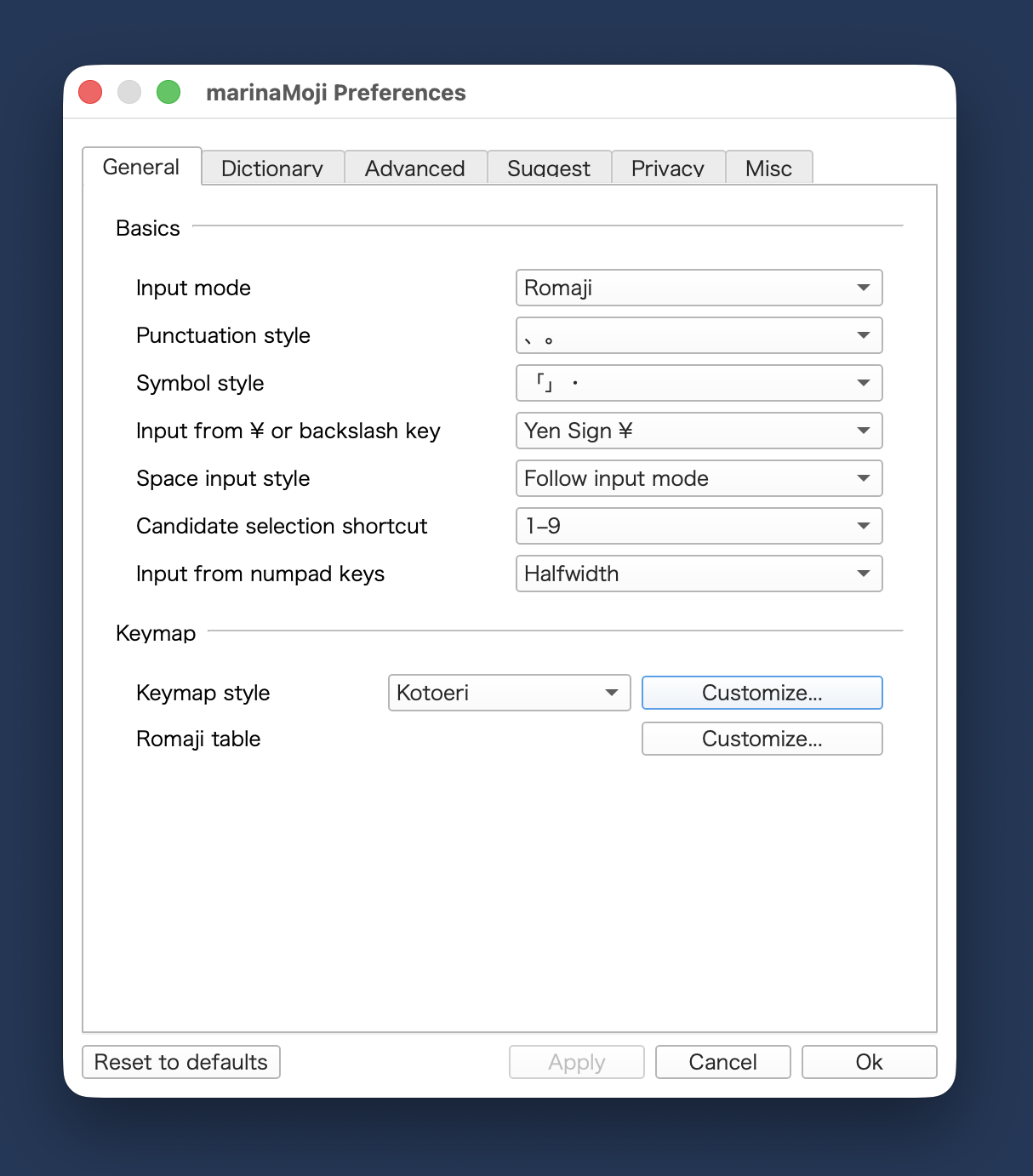
Open the full preferences window from the IME menu (Properties on macOS; Preferences from the IBus marinaMoji panel on Linux). Changes are saved when you click OK. The seven tabs below mirror the dialog in left-to-right order.
General sets defaults for everyday typing. Under Basics, choose your usual input mode (hiragana, katakana, half-width katakana, or direct input), how punctuation and symbols are produced, how the space bar behaves, shortcuts for picking candidates, and what the numpad and ¥ / backslash keys insert. Under Keymap, pick a keymap style (for example MS-IME or Kotoeri) or open Customize… to remap keys; Romaji table > Customize… opens the romaji-to-kana table, including marinaMoji’s historical-kana entries.
Dictionary controls learning and word lists. Personalization decides how strongly past conversions influence new ones, and Clear personalization data wipes that learned history. User dictionary ▶ Edit user dictionary… opens the editor for readings you have added yourself (archaic spellings, names, specialist terms). Edit user symbols… maintains the short strings that appear on the User tab of the toolbar Symbols palette ()—one symbol per line. Usage dictionary and Homonym dictionary tune how Mozc ranks frequent phrases and disambiguates similar readings. Special conversions fine-tunes some specific cases such as date/time conversion and symbol conversion. This allows the user to disable superfluous conversions hindering the workflow, notably emoji conversion.
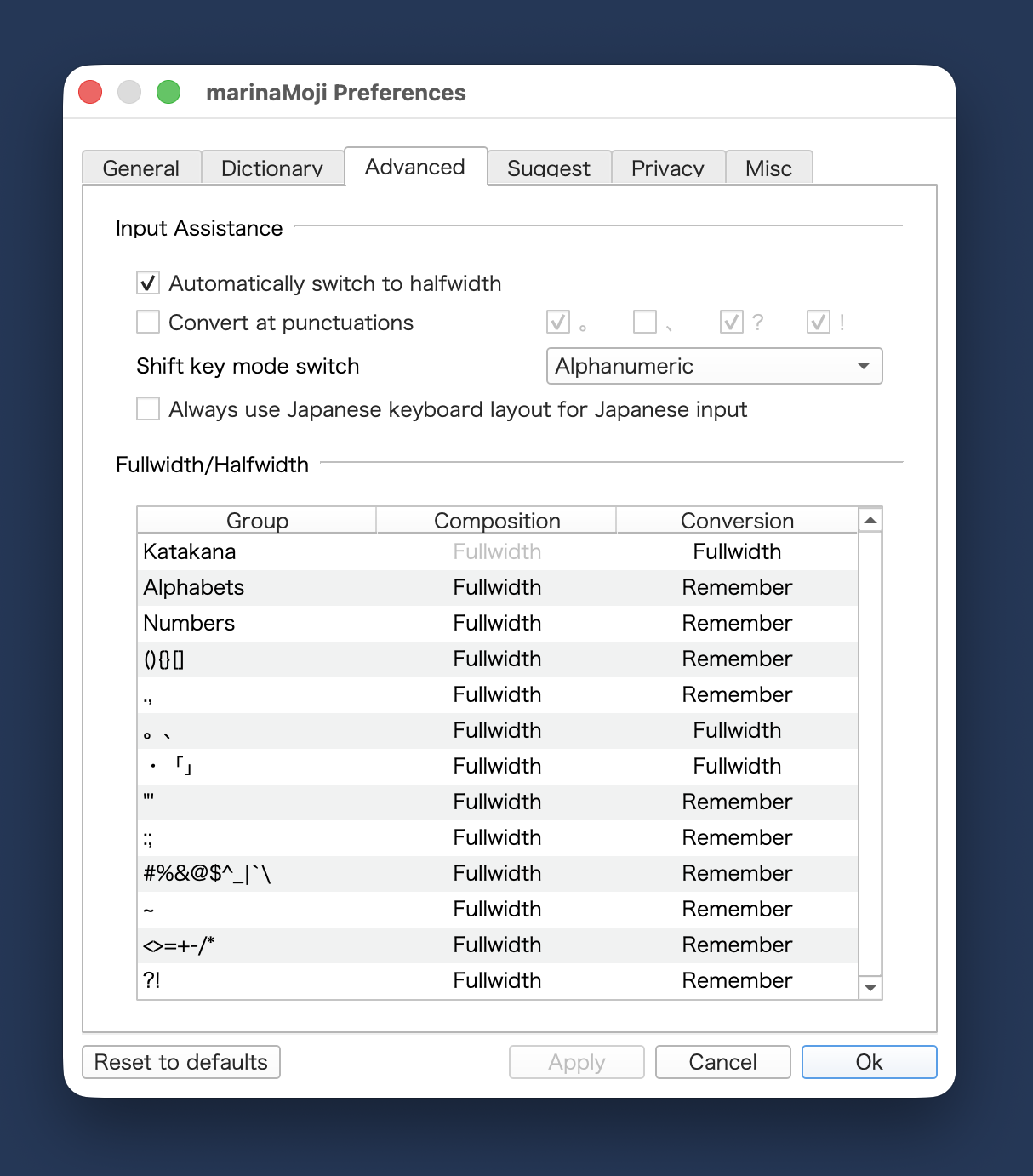
Advanced covers input assistance and character width. Input Assistance includes options such as switching to half-width after certain punctuation, converting when you type 。、?!, Shift key mode switch, forcing the Japanese keyboard layout for Japanese input, and showing a small input mode indicator near the cursor. Fullwidth/Halfwidth is a table: for each character type (letters, digits, punctuation, and so on), choose whether it should be full-width or half-width by default.
Suggest governs candidates shown while you type, before you press Space for full conversion. Under Source data, enable Use input history and Use system dictionary, and use the clear buttons if you want a fresh start without turning off learning entirely. Use realtime conversion shows kanji guesses as you type romaji. Other settings > Maximum number of suggestions caps how many inline candidates appear in the pre-edit line.
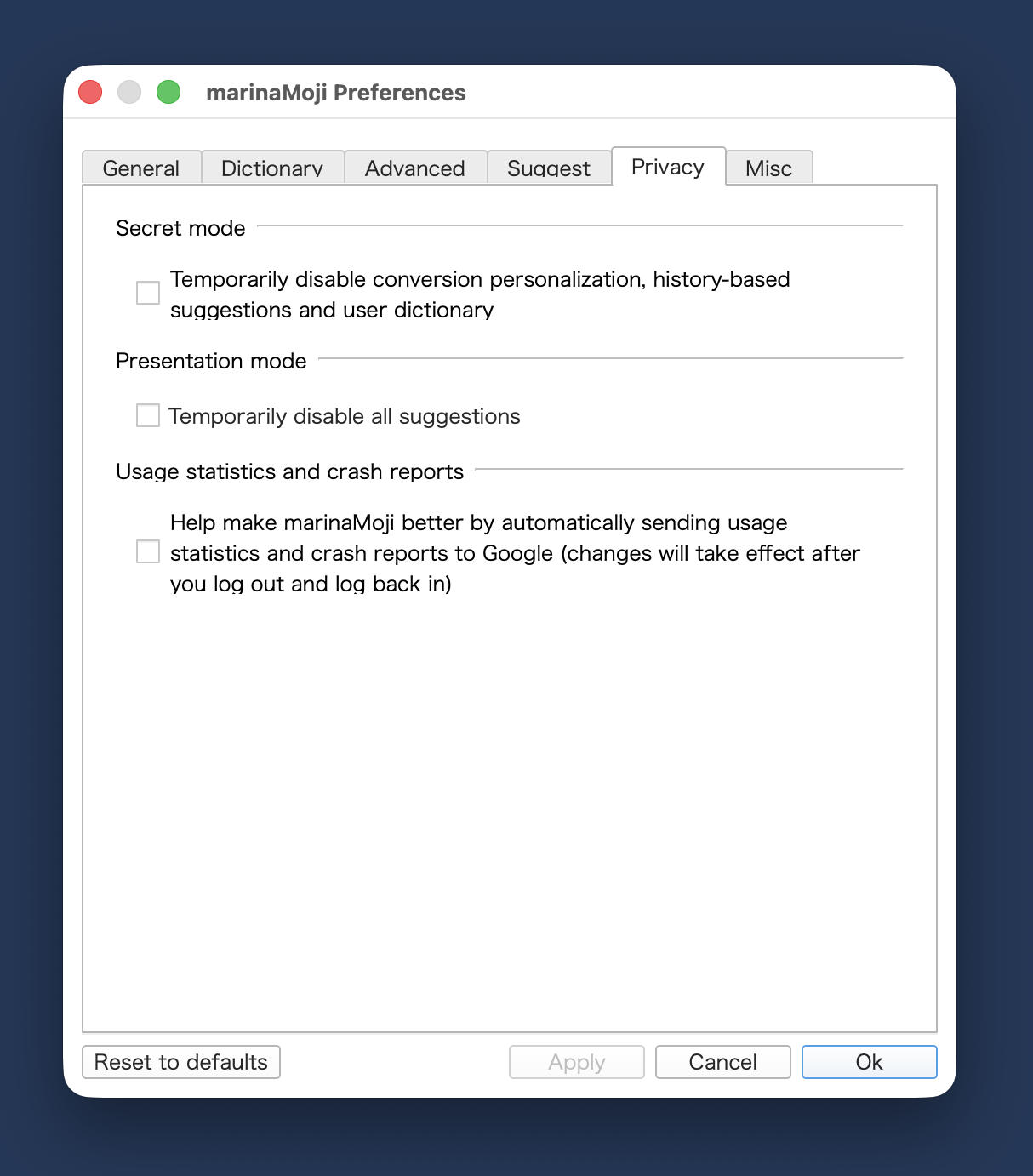
Privacy matches the IME menu’s Privacy mode toggle, but with finer control. Secret mode (incognito) temporarily disables personalization, history-based suggestions, and the user dictionary—useful on shared machines or sensitive drafts. Presentation mode turns off all suggestions for demos or screen sharing. Usage statistics and crash reports is shown for compatibility with stock Mozc; in marinaMoji this option is disabled and no usage data is sent to Google or to the marinaMoji developers.
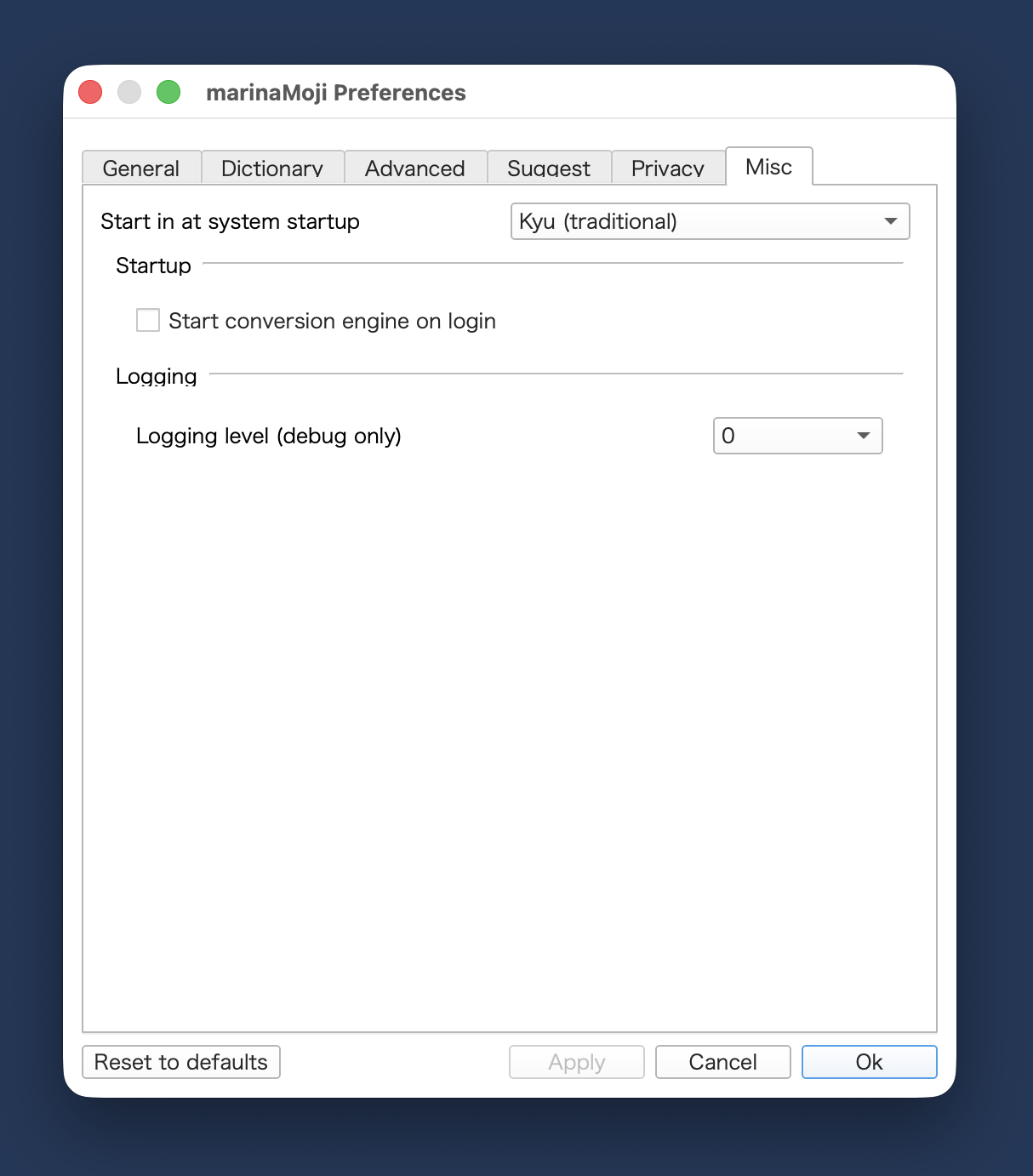
Misc holds environment and maintenance options. Candidate window chooses how the conversion list is drawn (for example vertical vs horizontal). Start in at system startup can default the IME to modern (shin) or traditional (kyū) kanji mode when you log in. Default IME checks whether marinaMoji is the active input method and can disable the system Ctrl+Shift keyboard-layout hotkey if it conflicts with IME shortcuts. Administration opens dictionary preloading and related system settings on platforms that support them; Logging controls diagnostic verbosity for troubleshooting.
Shortcuts lets you disable the Left Shift toggle between Japanese and direct input. Double-tap Left Shift locks or unlocks the current mode (on Windows, Ctrl+Alt+Right Shift does the same). Right Shift alone toggles hiragana ↔ Manyōshū, except in Direct input, where it arms the macron dead key (tap Right Shift, then a vowel). Even when the lock is on, Shift can be used for capitals and shortcuts. You can also assign actions to physical number-row keys in order to personalize the odoriji, mode toggle (shin/kyū, hiragana/Man.yōshū, Japanese/direct input), as well as the dictionary entry shortcuts. Edit kaeriten shortcuts opens a table where all kaeriten shortcuts can be edited to suit user preferences. Note that the shortcuts for kaeriten necessarily begin with a semicolon, followed by a key or a combination of keys. Only the latter can be modified.
Sync configures encrypted synchronisation across devices: enable sync, choose the .mmz.enc bundle path, generate or enter the sync key, choose whether to sync the user dictionary, learning history, or both, direction, auto-sync interval, and Sync now. See Synchronisation across devices for setup steps.
Synchronisation across devices
While marinaMoji is purely local to your machine, it can synchroniseuser dictionary and learning history across computers using an encrypted file in a folder you already sync with a third-party service (Nextcloud, Syncthing, iCloud Drive, Dropbox, etc.). marinaMoji does not run a cloud server — it only reads and writes the file path you choose.
What you need
marinaMoji on two or more devices (macOS or Linux).
One shared folder that every machine can read and write after your usual cloud client runs.
How it works (several machines)
All computers point at the same logical .mmz.enc file (the path on disk may differ per machine). Each Sync merges that machine's local data with the bundle and writes the result back. Dictionary entries and learning history accumulate across machines. If two machines disagree, the copy in the bundle at sync time wins on the machine that syncs next.
Avoid running Sync now on two machines at the exact same moment; wait for your cloud folder to finish copying the file before syncing on another device.
First-time setup
On device A (create the bundle):
Open Properties / Preferences > Sync.
Turn on Enable encrypted sync.
Click Browse… and choose a path inside your shared folder, e.g. Nextcloud/marinamoji/marinamoji_sync.mmz.enc.
Enable User dictionary and Commit / learning history unless you want a narrower sync.
Set Direction to Bidirectional.
For the first test, set Auto-sync to Manual only.
Click Generate sync key. Keep it open or copy the key to a password manager — do not put it in the cloud bundle.
Click Sync now and confirm success.
On devices B, C, D, …:
Wait until the cloud client shows the .mmz.enc file on this machine.
Open Sync; enable sync and point to the same synced file (local path may differ).
Click Enter sync key and enter the key generated on device A.
Match checkboxes and direction with the other machines.
Click Sync now.
You can also run Sync now from the Dictionary Tool menu after editing words.
While sync is running
marinaMoji shows a brief “synchronising” message at the centre of the screen and blocks keyboard input to the IME until sync finishes (with a beep if you try to type). This is normal; wait a few seconds or watch Sync now complete in Properties.
Direction and auto-sync
Option
Use when
Bidirectional
Both machines should merge changes (usual choice).
Upload only
This device pushes its data to the bundle without importing remote changes.
Download only
This device pulls from the bundle without overwriting it.
Auto-sync
Behaviour
Never
Sync only when you click Sync now.
Manual only
Same as never for scheduling; explicit sync only.
Every N minutes
Background sync on an interval; also watches the bundle file’s modification time.
On shutdown
Sync when the IME server shuts down.
Scheduled sync is skipped while you have an active composition (preedit or candidate window open).
The sync key is never stored in plain form inside the encrypted cloud bundle.
Privacy
With Privacy mode on, history is not exported; dictionary sync can still run if it is enabled.
Sync is entirely opt-in. If you disable it, marinaMoji behaves as a local-only IME.
Troubleshooting
“Sync key not set” — Generate or enter a key on that device first.
Decryption / wrong key errors — Keys must match exactly on every machine.
Changes from another computer don’t appear — Confirm the cloud folder finished syncing; click Sync now on both sides; verify the same bundle file and key.
Do not edit.mmz.enc files by hand; treat the shared folder like any important backup.
For rare kanji, hentaigana, IDS components, and editorial symbols, system fonts often fall back to tofu (□) or wrong glyphs. The following families offer broad Unicode coverage; install one or more on your system and select them in your word processor or browser.
 /
/ /
/ /
/ /
/ ), a toggle for shin/kyū character forms (
 /
/ ), and buttons for the Symbols palette (
 ), Add word (
 ), and Keyboard shortcuts guide (
 ). Drag the toolbar to reposition it; use the IME menu item Toolbar to show or hide it. Each of these functions is described below.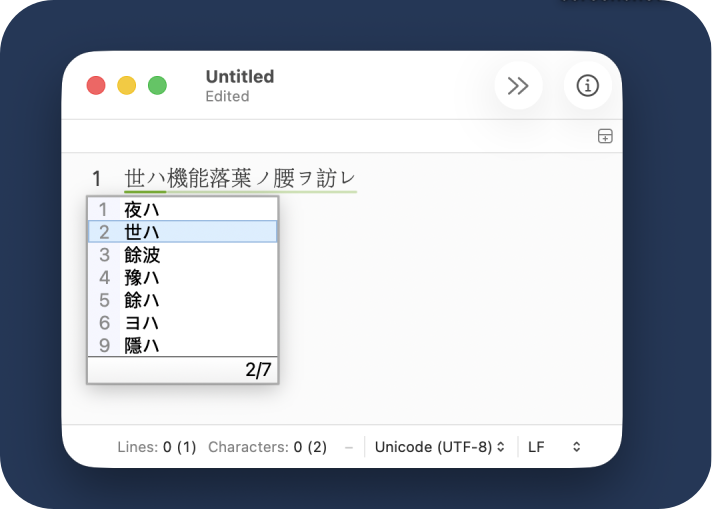
 ).
).